
Product management
Add and manage your products
Your product listings do the selling before the conversation starts. Here is how to add products, keep them organised and update them as your range changes.
Your product list
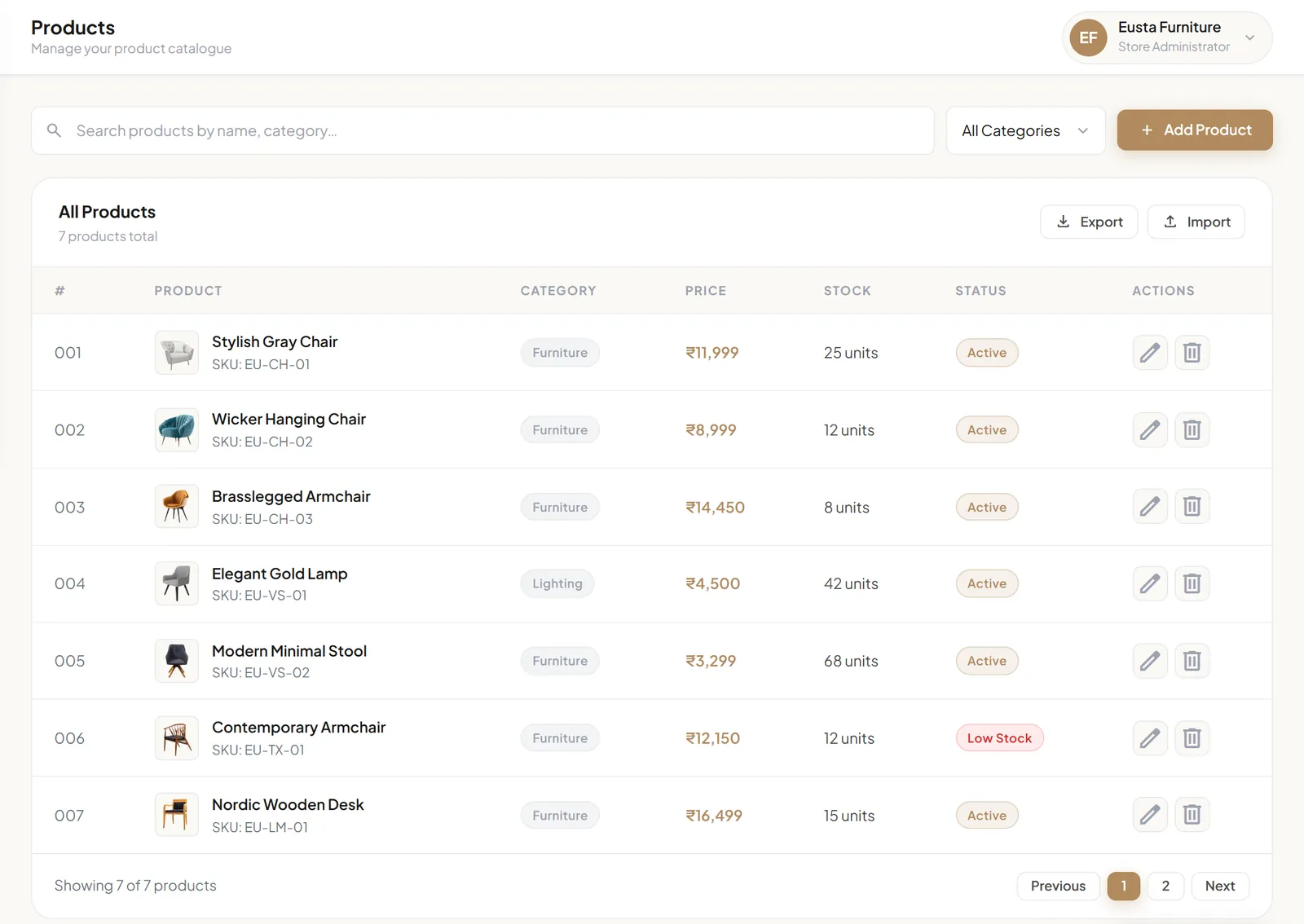
Products in your dashboard lists every product with its photo, SKU, category, price, stock and status. Use the search box to find products by name or category, and the category menu to filter the list. The pencil and bin icons in the Actions column edit or delete a product.
Add a product
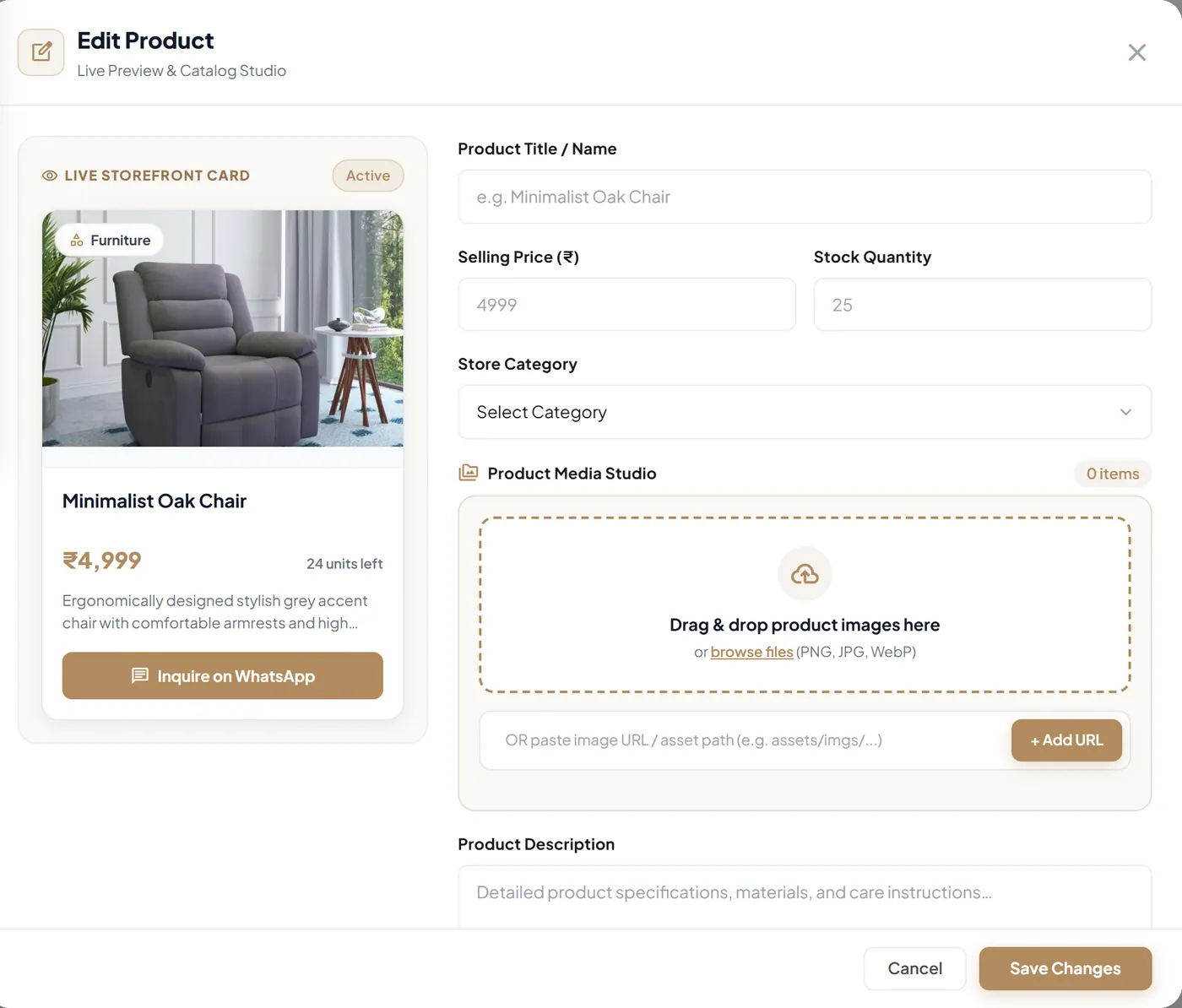
- Start a new productIn Products, select Add Product.
- Add the basicsEnter the Product Title / Name, Selling Price and Stock Quantity, then choose a Store Category.
- Add imagesIn the Product Media Studio, drag and drop images (PNG, JPG or WebP), browse for them, or paste an image URL and select Add URL.
- Describe itWrite a Product Description covering materials, sizes, care instructions or anything customers usually ask about.
- Check and saveLook over the Live Storefront Card preview, then select Save Changes.
Each product also shows an SKU in your list and on its product page. The SKU is included in WhatsApp enquiries, so you know exactly which item a customer means.
Organise with categories
In Categories, select Add Category, give it a name and choose an icon. Each category shows how many products it contains, and you can edit or delete it at any time. Customers can browse your store by category.
Keep stock and prices up to date
- Update stock quantities when you restock or sell out. Each product's status, such as Active or Low Stock, appears in your product list.
- Change prices from the product editor; your storefront shows the new price once you save.
- Remove products you no longer sell so customers don't enquire about them.
Import and export
Use Import to add products from a CSV, XML or JSON file, and Export to download your catalog as a CSV file.
Before importing a large catalog, try a small file first and check the results in your product list.
Tips for listings that get enquiries
- Use bright, uncluttered photos, and add more than one angle.
- Name products the way customers would describe them.
- Keep descriptions specific: size, material, colour options and what's included.
- Keep prices current. The WhatsApp enquiry includes the price shown in your store.